Category: How to Guides.

  • Add-Fund

    💳 Add Money to Your Ad Account

    Follow this visual guide to securely add funds directly to Meta using the app.

    📱

    Step-by-Step Mobile Guide

    Follow Screenshots Below
    1

    Go to the Play Store and install the Meta Ads Manager app.
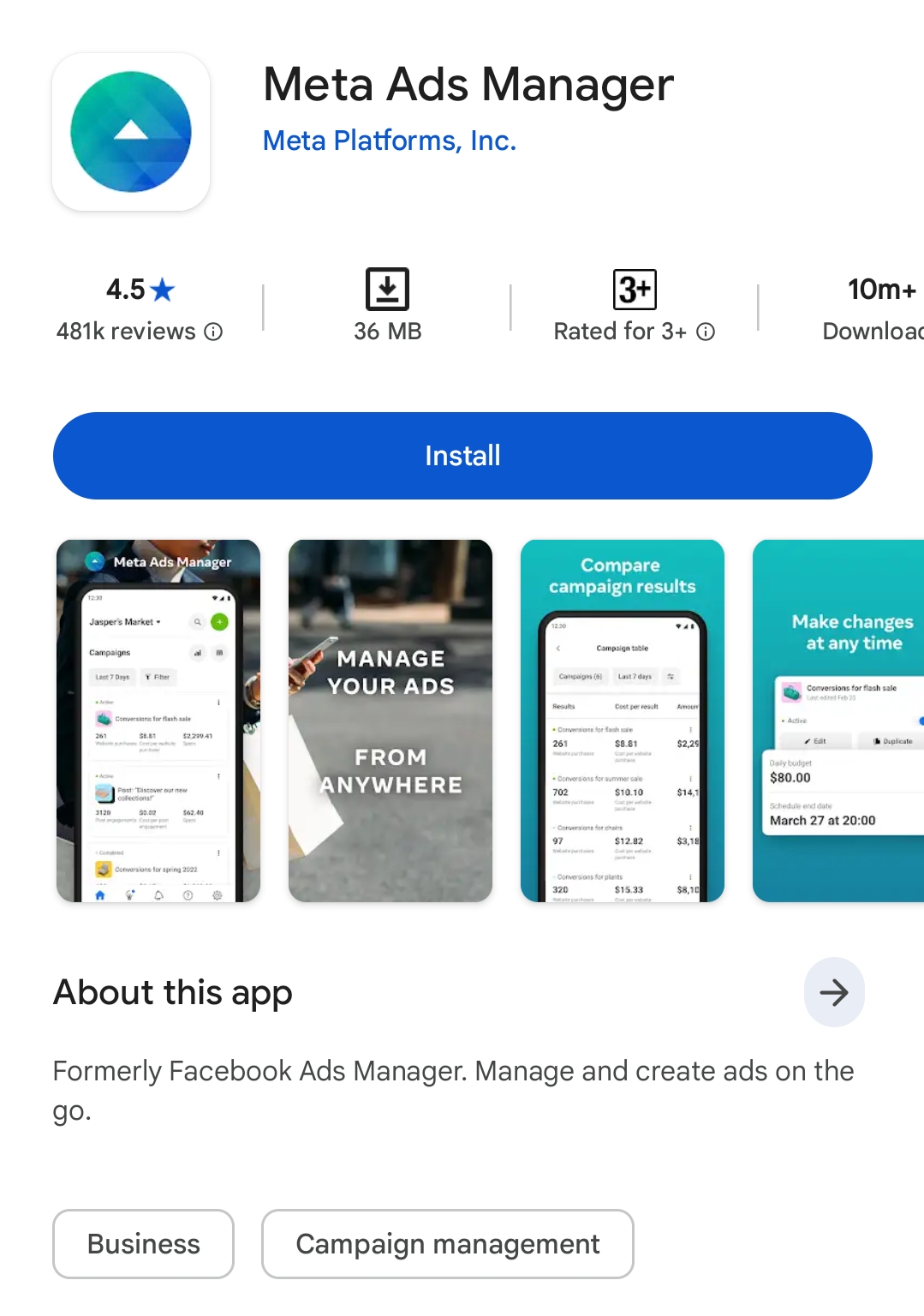
    Install Meta Ads Manager
    2

    Open the app and Log in with your Facebook account.
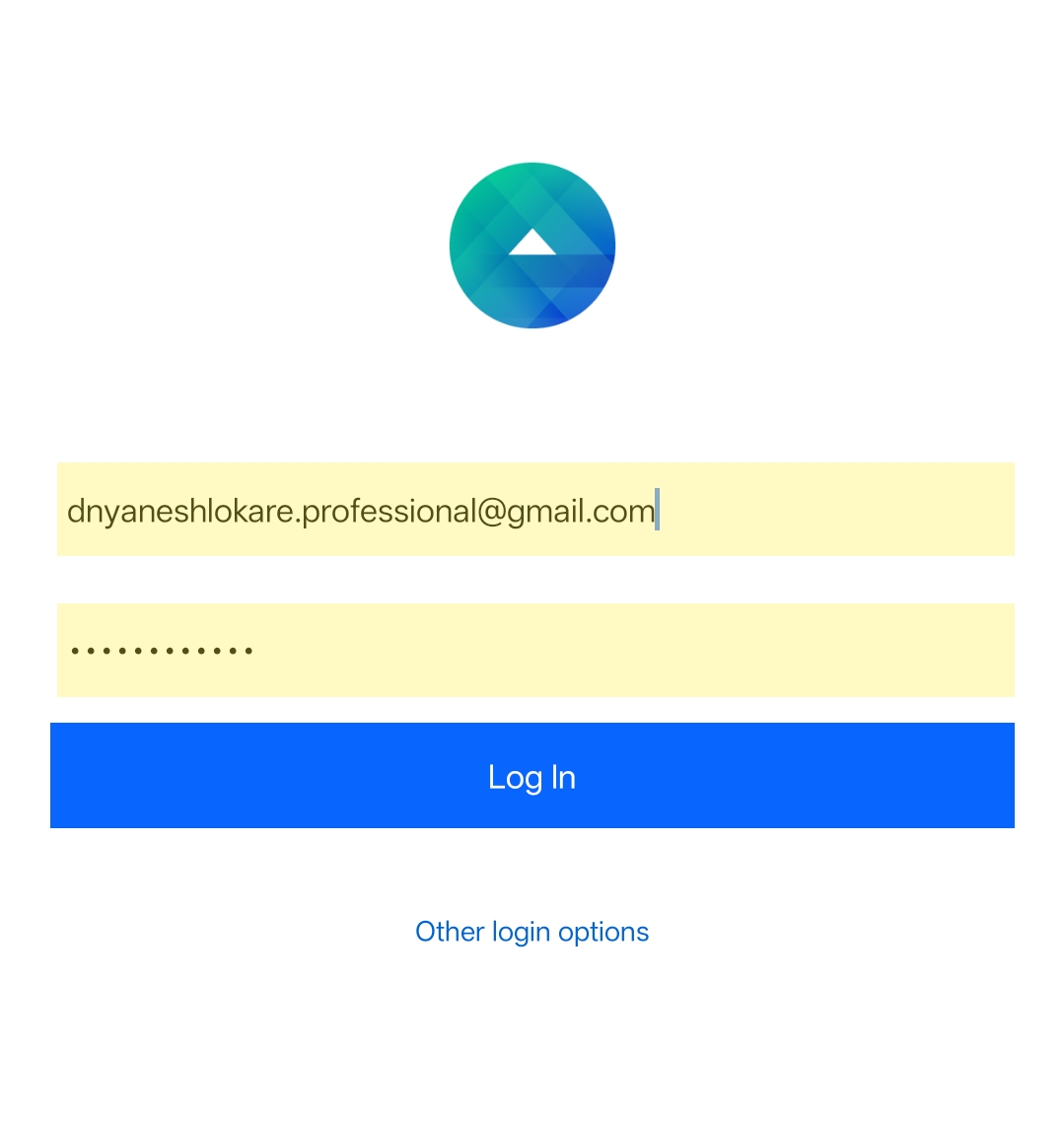
    Login with Facebook
    3

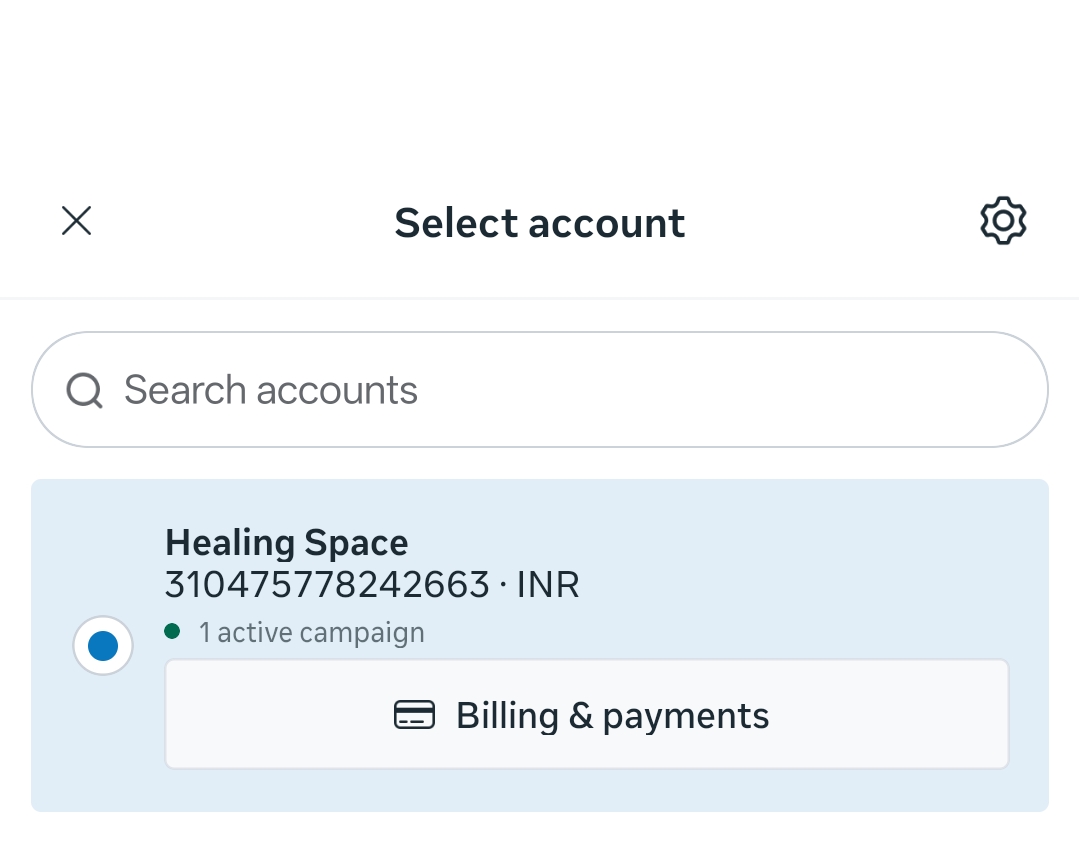
    Select your Ad Account from the list.
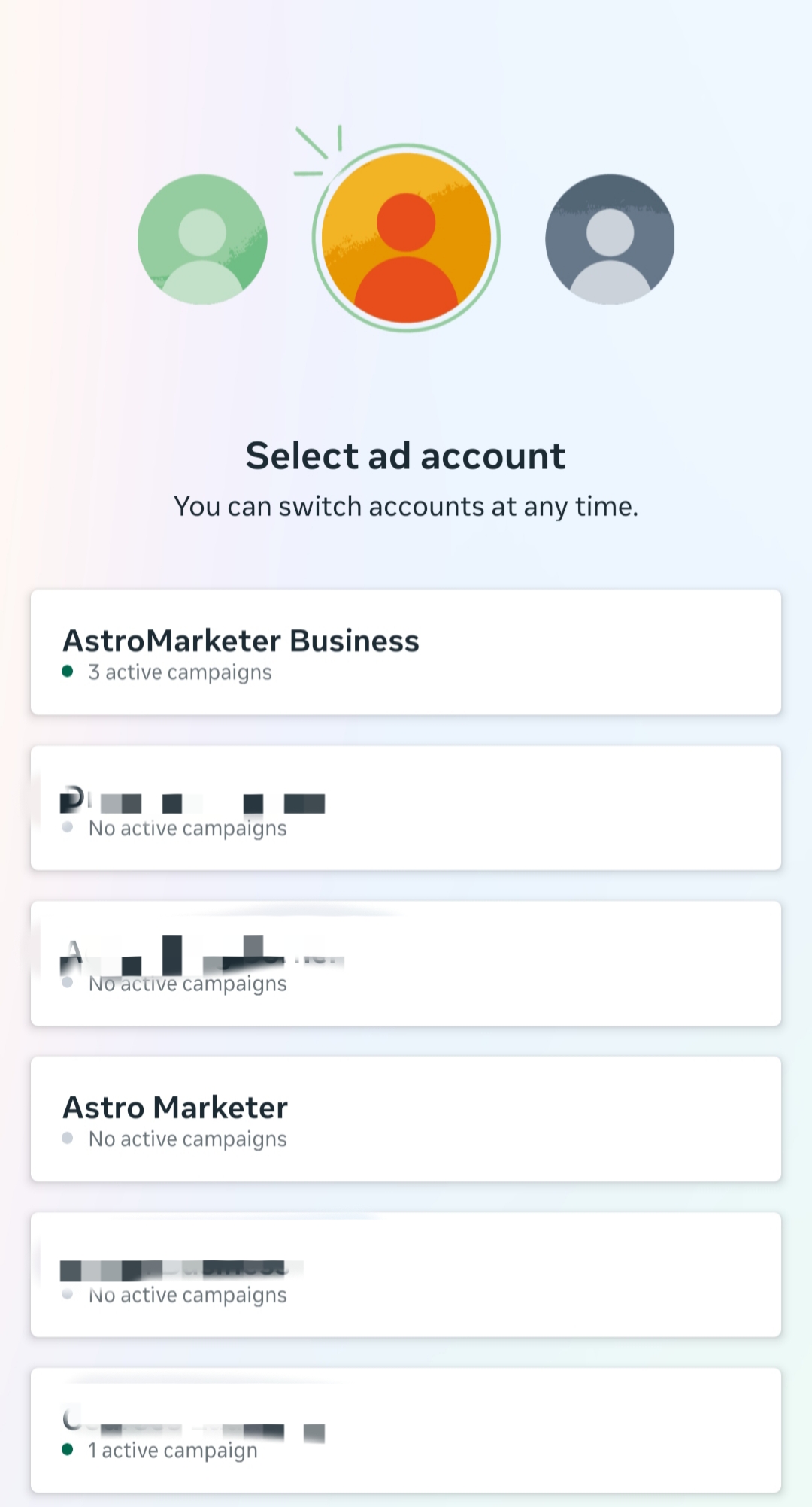
    Select Ad Account
    4

    Tap the Settings (Gear Icon) ⚙️ located in the corner.
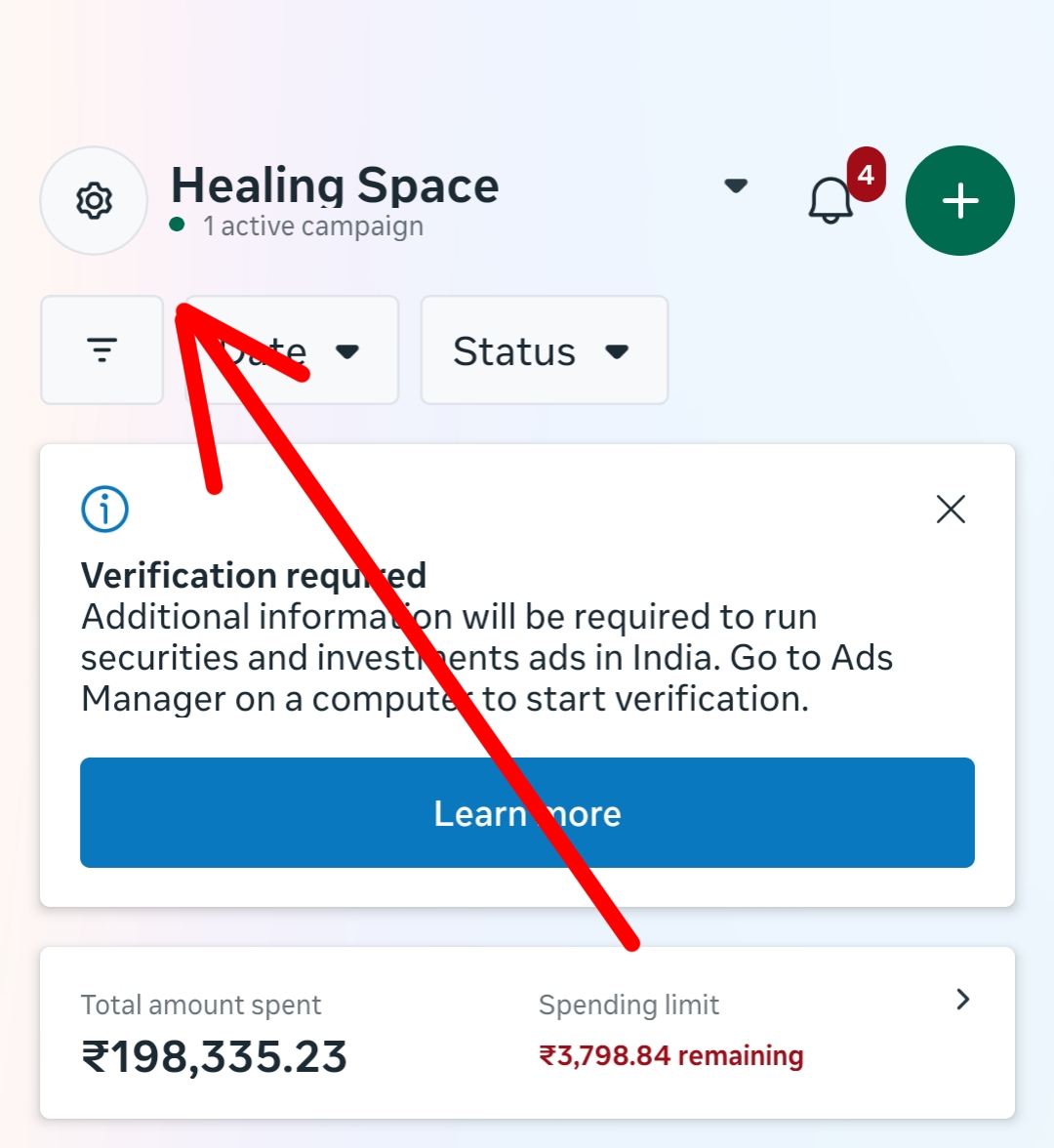
    Click Settings
    5

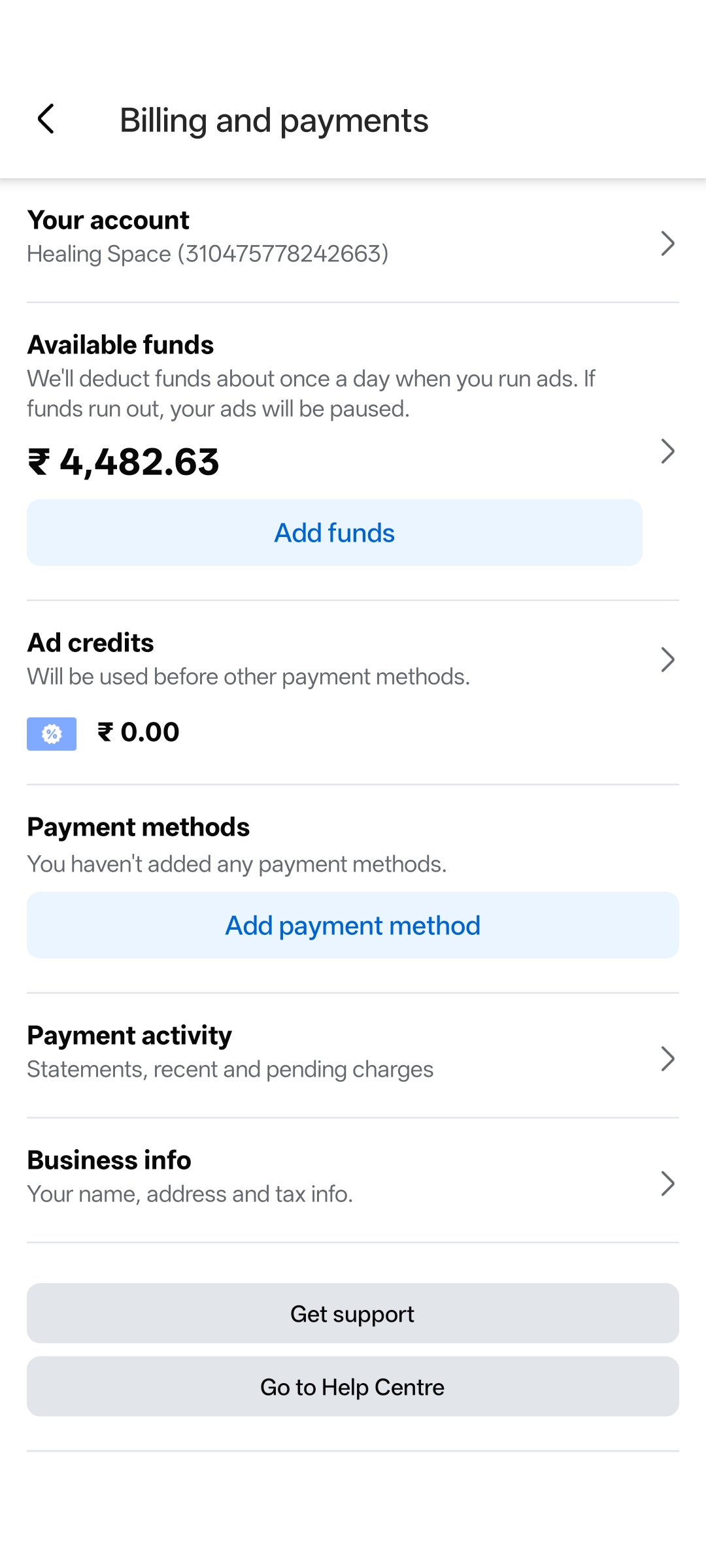
    Tap on Billing and payments.

    Billing and Payments
    6

    Tap the Blue Add funds button.

    Click Add Funds
    7

    Enter the amount (e.g., ₹3,000) and select UPI or Card. Then click Next to pay.
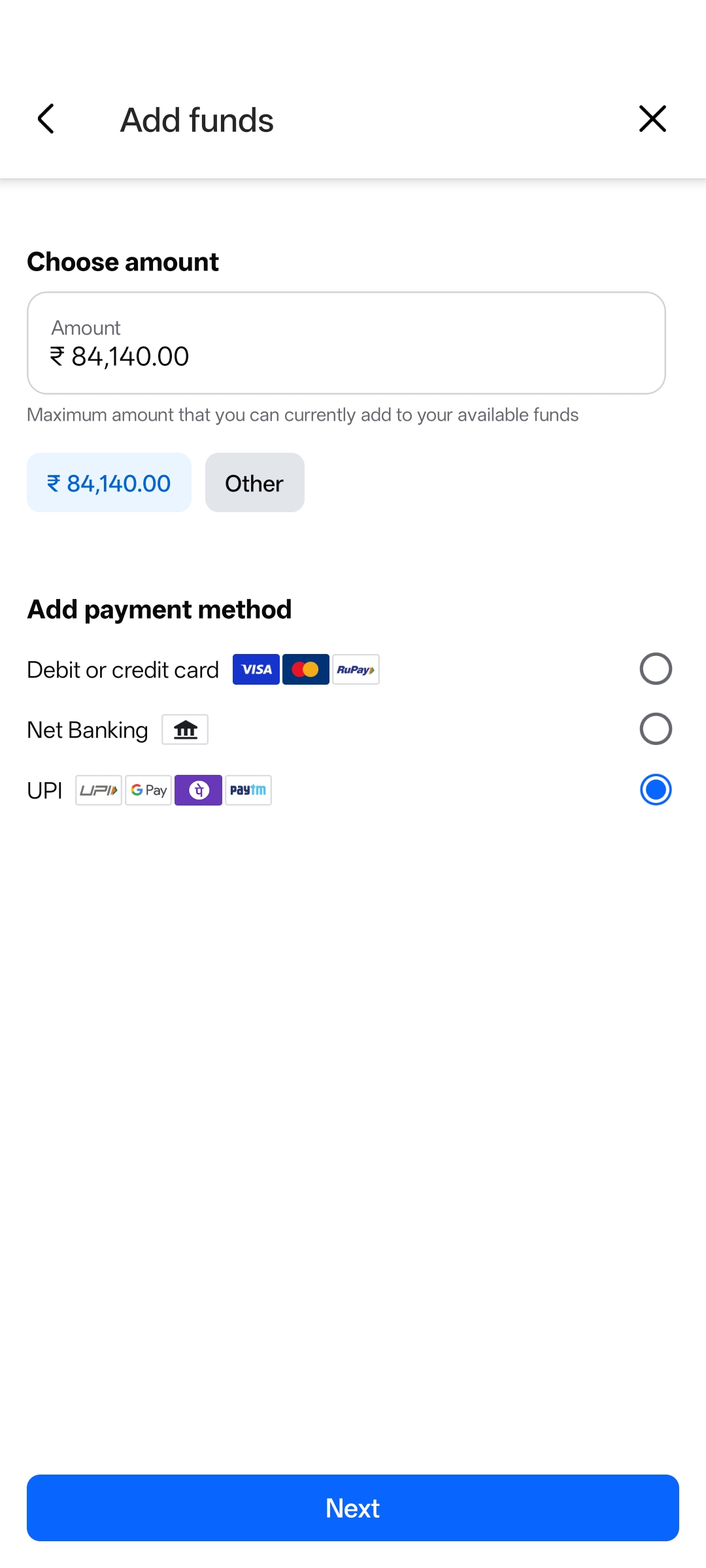
    Enter Amount and Pay
    💰 Tip: Start with ₹3,000 to ₹5,000 for testing.
    ⚠️ Safety Notice

    Always add funds inside this app. Never send money personally to anyone on WhatsApp.

  • Access

    Partner Access Guide

    Meta Business Portfolio Access

    Follow this guide to securely grant AstroMarketer access to manage your ads and pages without sharing your personal login credentials.

    Prerequisite

    You must have an existing Meta Business Portfolio. If you don’t have one, please create it at business.facebook.com before proceeding.

    Watch Video Tutorial
    AstroMarketer Partner ID
    245364488656872
    Use this ID in Step 2 below
    1

    Open Business Settings

    Log in to Facebook and navigate to business.facebook.com. Select your Business Portfolio (gear icon) and click Settings.

    2

    Add Partner

    In the left menu, go to Users > Partners. Click the blue Add button and select “Give a partner access to your assets.”

    Paste the AstroMarketer ID (copied above) into the field and click Next.

    3

    Assign Assets

    Select the assets you want us to manage. Ensure you grant full or partial access based on your needs:

    Asset Type Required Access Level
    Facebook Page
    Select “Full Control”
    Instagram
    Select “Content”, “Messages”, and “Ads”
    Ad Account
    Select “Full Control”
    Pixels
    Select “Manage Pixels”
    Datasets
    Select “Manage Event Dataset”
    WhatsApp
    Select “Full Control”
    4

    Save Changes

    Review your selections and click the Save Changes button to finalize the access.

    📸

    Verification Required

    To prevent delays, please take a screenshot showing AstroMarketer in your “Partners” tab and send it to our team along with the names of the assets you shared.